
A closer look
Clean, fast and built for caravan parks
Every screenshot here comes from Riverbend Holiday Park, a demo park we set up with 22 sites and a year of sample bookings. Your park gets the same screens with your own photos and colours.
Quick to open, even on one bar
Your staff check bookings between jobs, and plenty of guests book from the car with patchy reception. Spacecamps opens quickly for both.
Sites and prices show straight away
Guests see your sites and prices as soon as the page opens. They aren’t left looking at a blank screen while it fills in.
Nothing extra on your booking page
Your booking page has no ads or chat pop-ups, so a guest’s phone has less to download and the page opens sooner.
Find any page by typing
Press Ctrl+K (⌘K on a Mac), type a few letters of the page you want and press Enter, instead of clicking through menus.
Meter readings without signal
Read the meters along the back row with no coverage. Your phone holds on to each reading and sends them through once you’re back in range.
Guests still need a connection to pay by card. How bookings work on a weak signal
Tidy screens for a busy park
Each page covers one job, like today’s arrivals or the cabins still to clean, and leaves the rest off. It works on the office computer and on your phone.
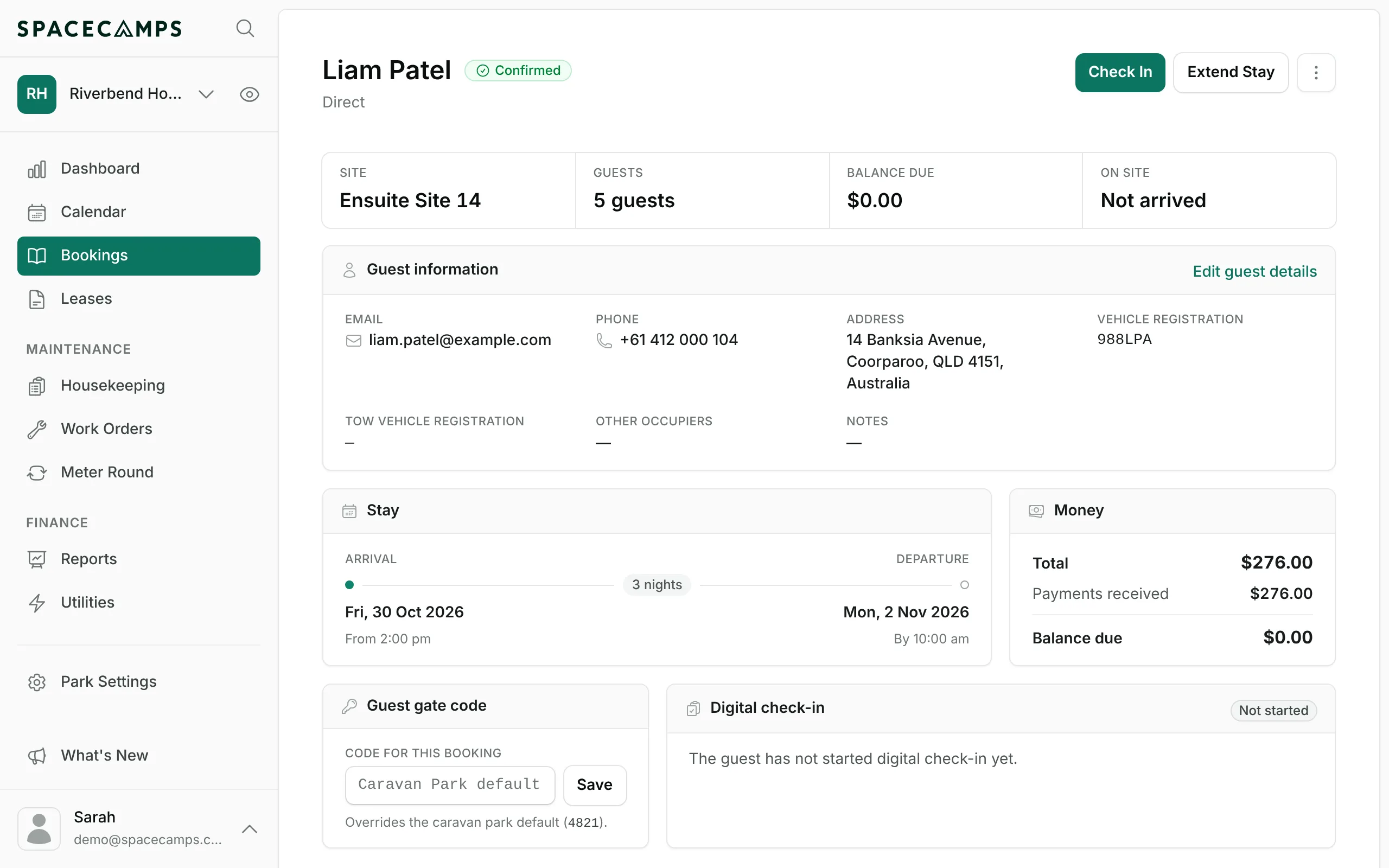
One screen per stay
The guest’s contact details and rego sit beside what they’ve paid, their gate code and whether they’ve checked in online. You can check them in or refund them from the top of the page.
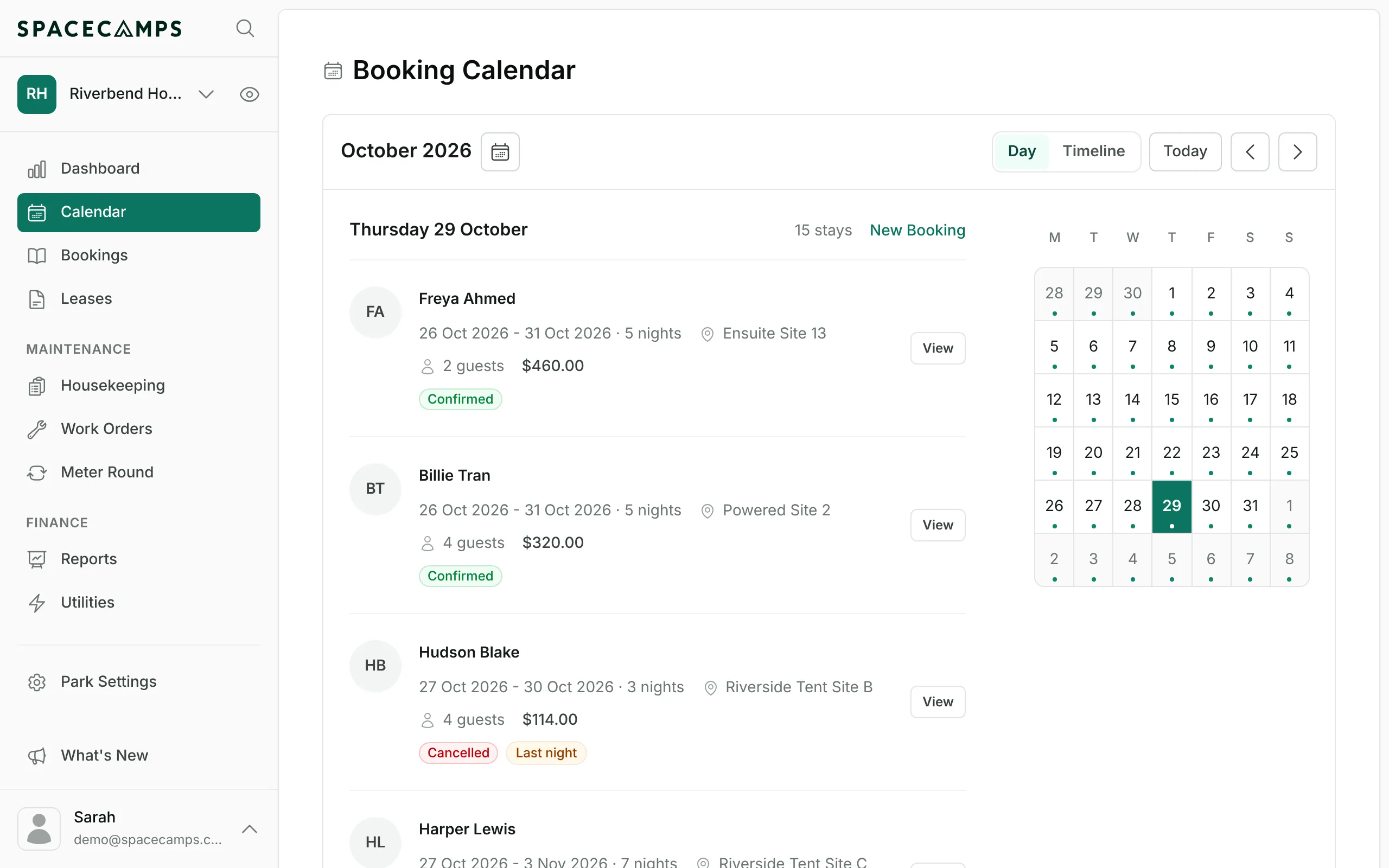
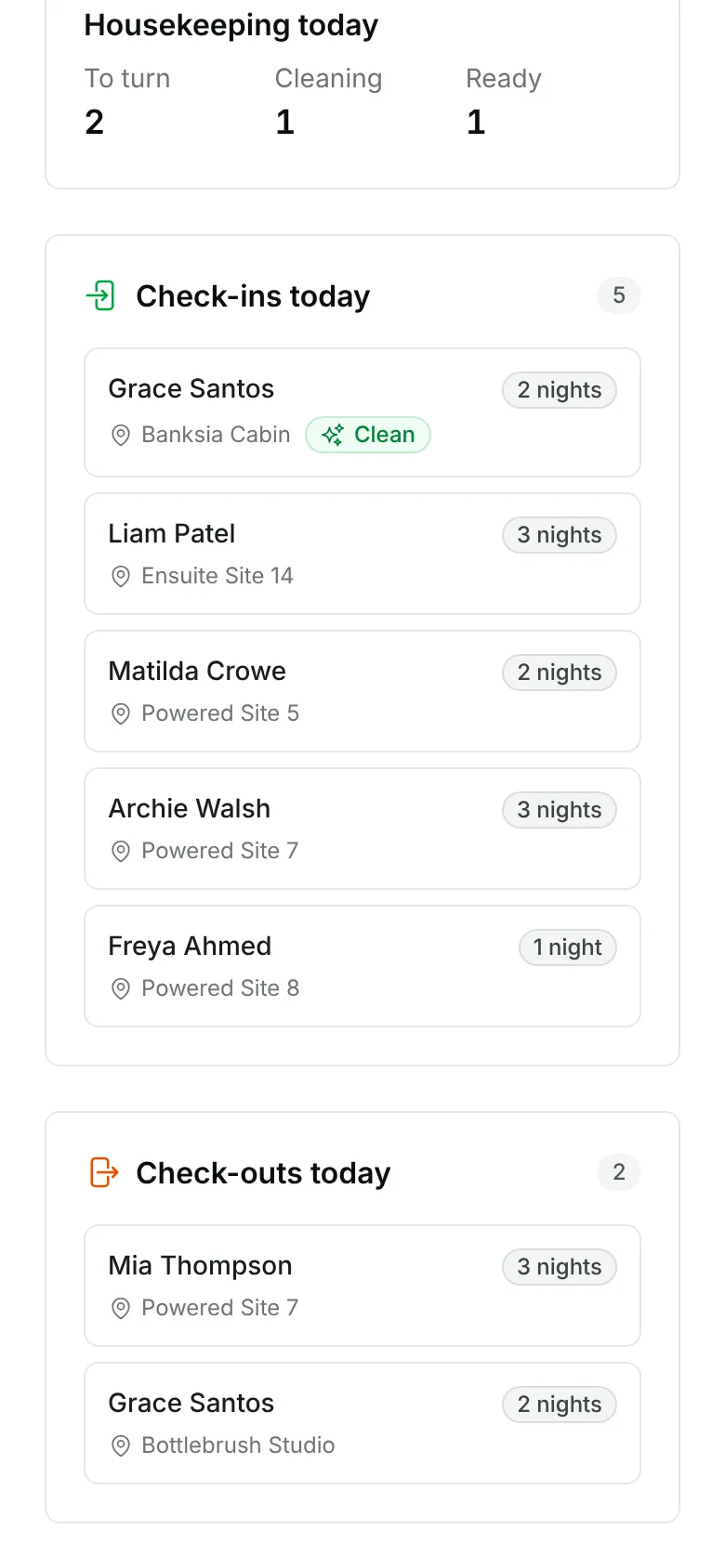
Who’s staying on any day
Pick a day and you get one list of everyone staying, whether they booked with you directly or through an OTA. Each entry shows the site and what the guest paid.
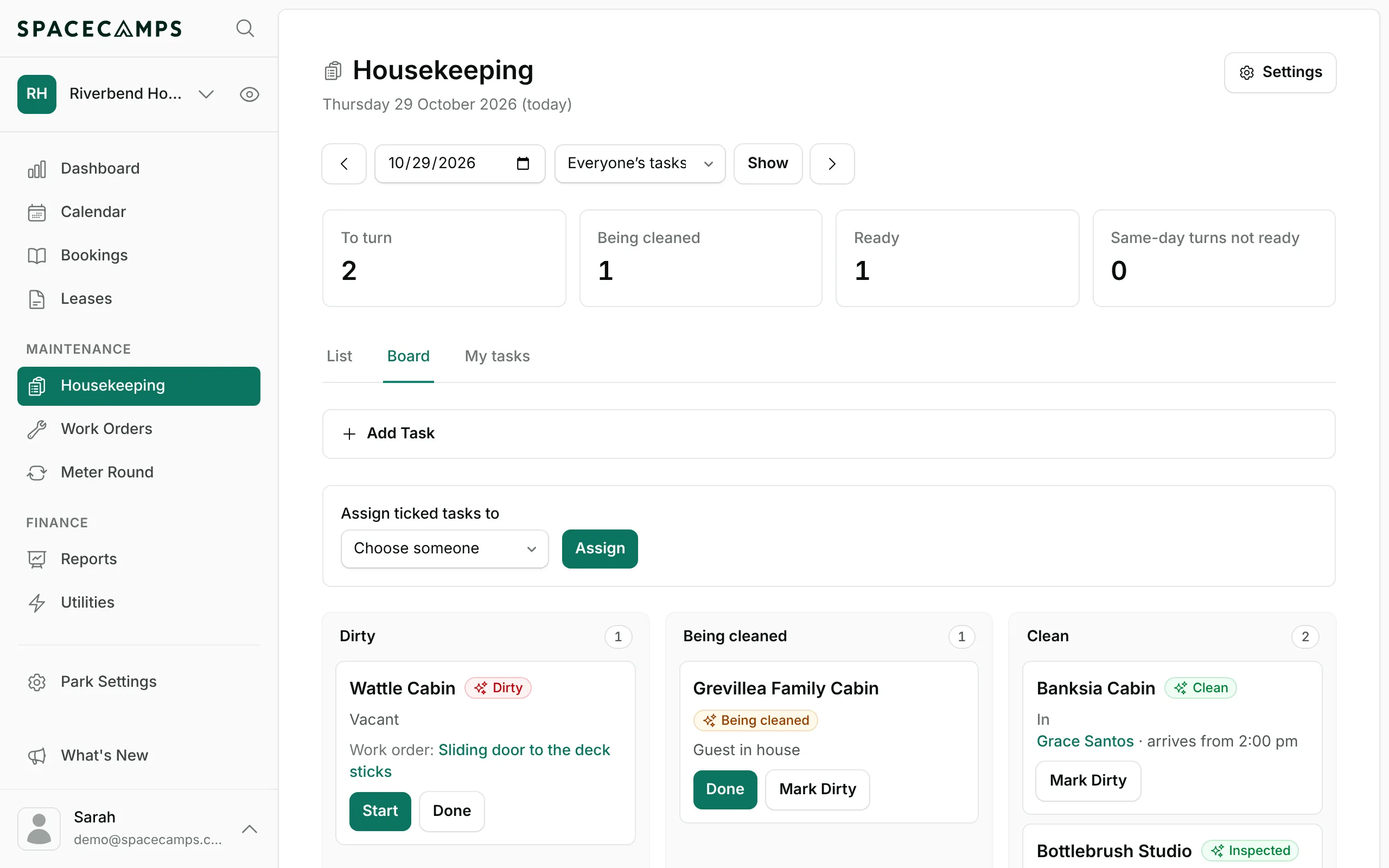
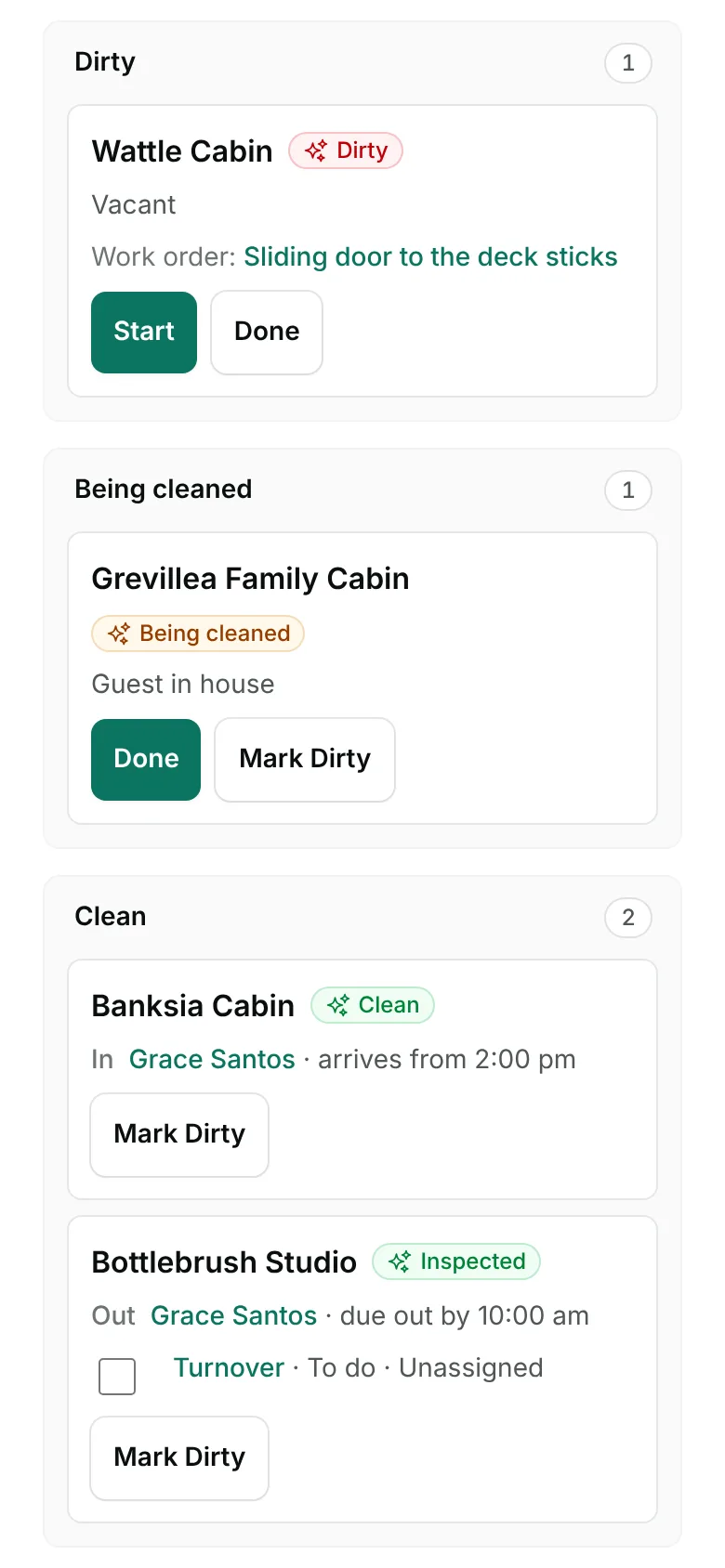
Cleaners know which cabin is next
Cabins sit in columns by cleaning status. Each card shows who checked out and who arrives next, and your cleaners tap Start and Done as they work.
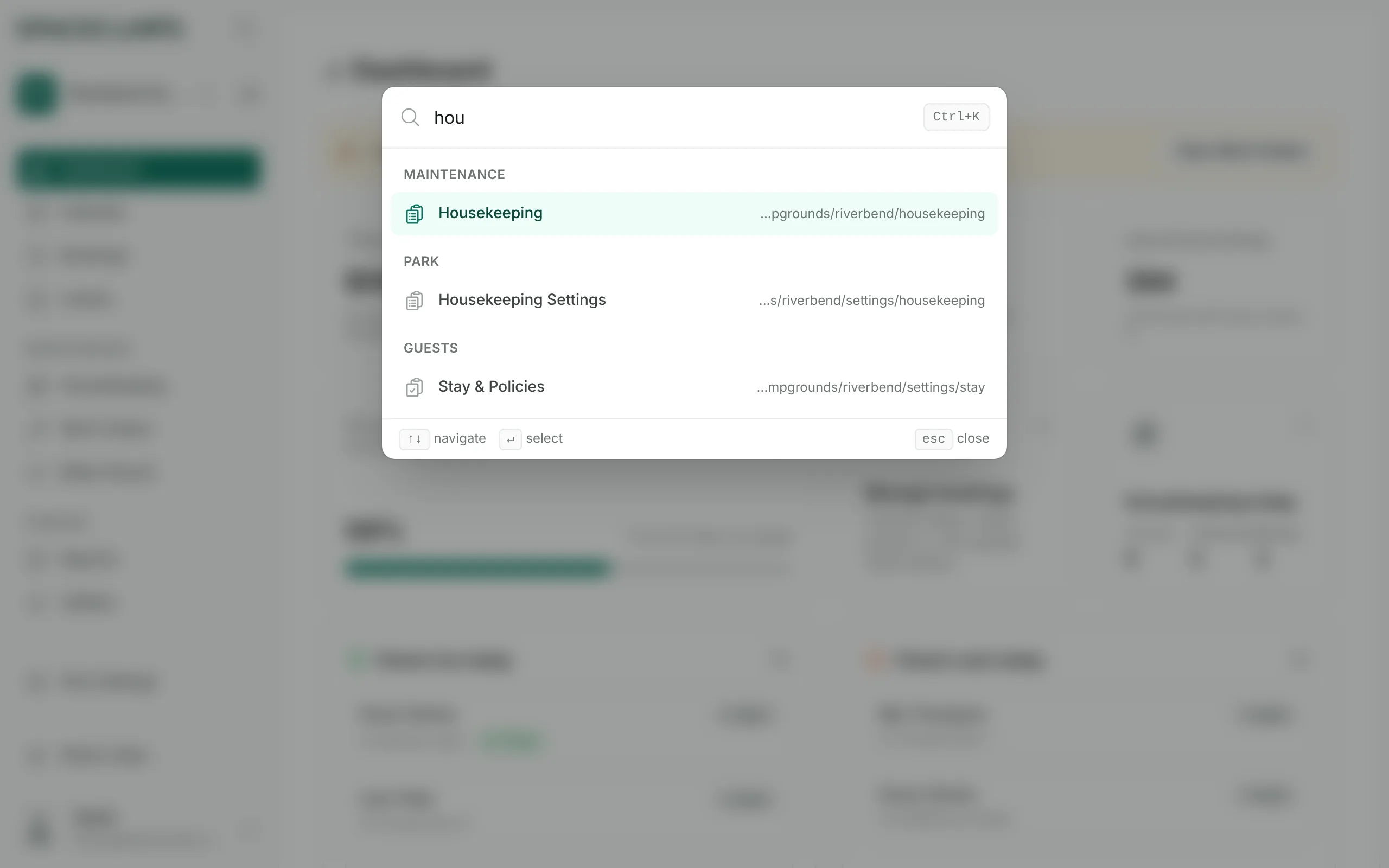
Search instead of menus
Typing “hou” here brings up Housekeeping and its settings.
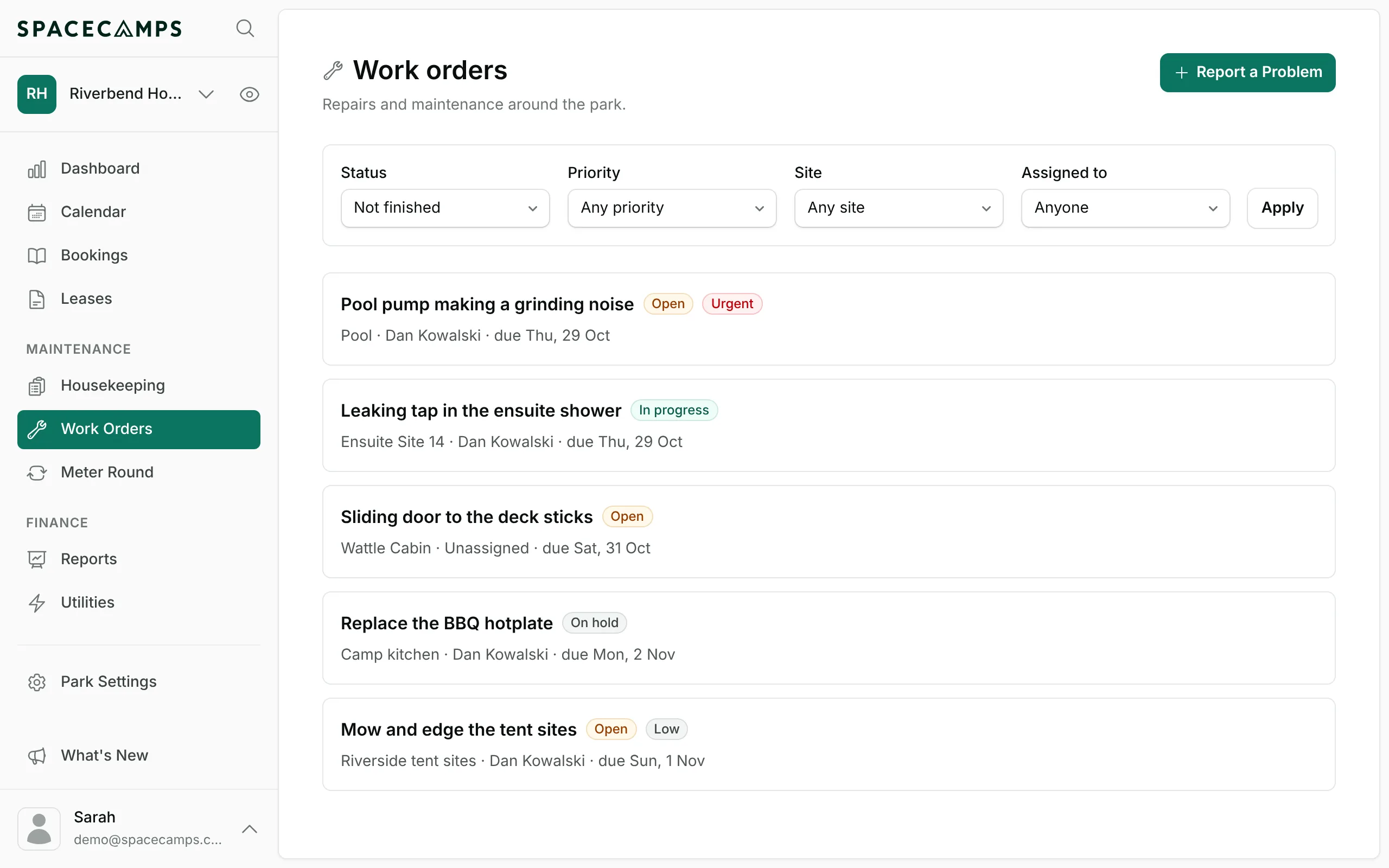
Keep track of repairs
Log a leaking tap and give it to whoever is fixing it. Urgent jobs stay on the dashboard until someone marks them done.
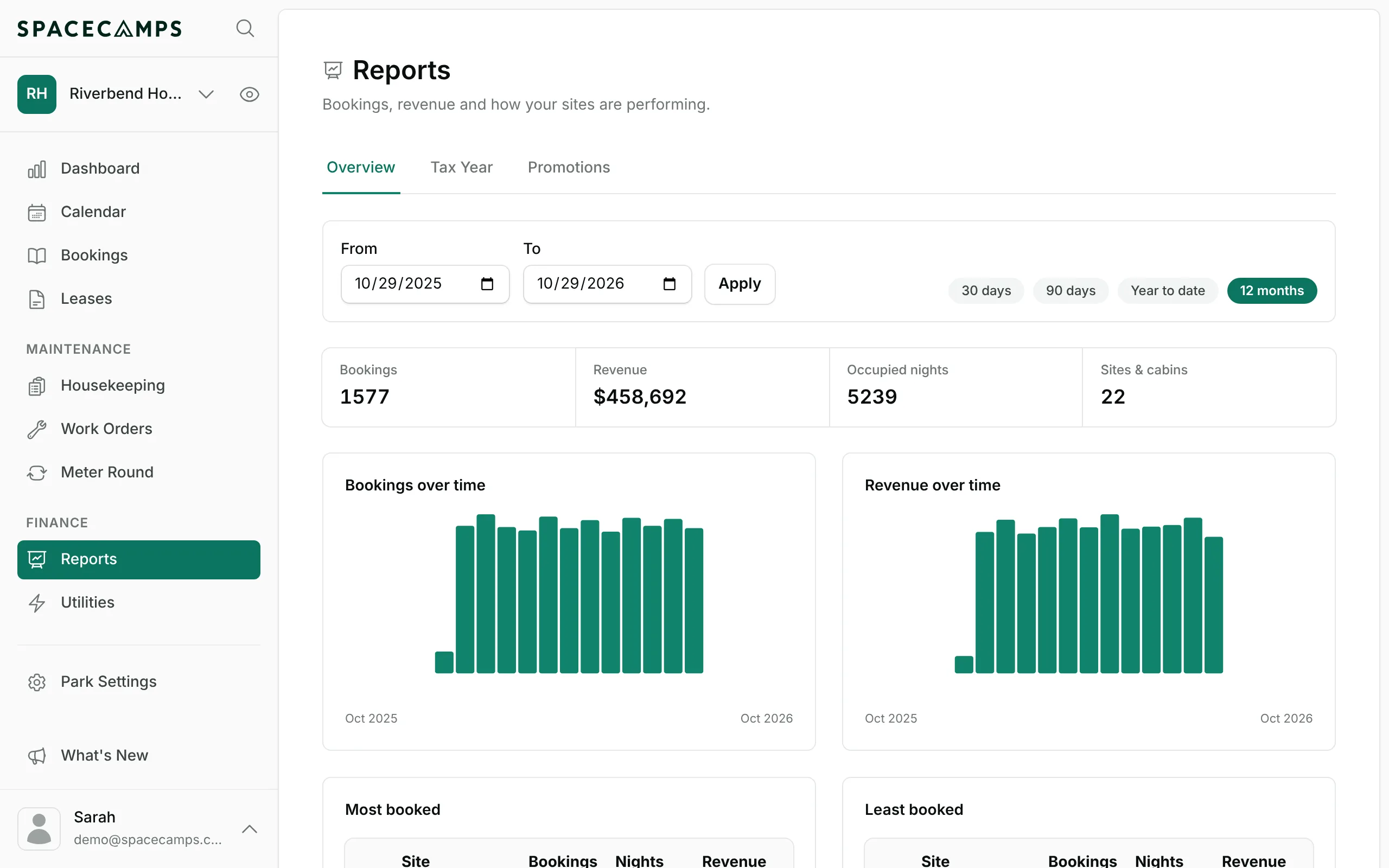
See what each site earns
Pick a date range to see revenue and occupied nights, and which sites earn the most.
Run the park from your phone
Check today’s arrivals from the camp kitchen, or mark a cabin clean as you lock the door. Every page fits a phone screen, and there’s no app to install.
A booking page in your park’s colours
Guests book at yourpark.spacecamps.com.au, where they see your photos and the full price before they pay.
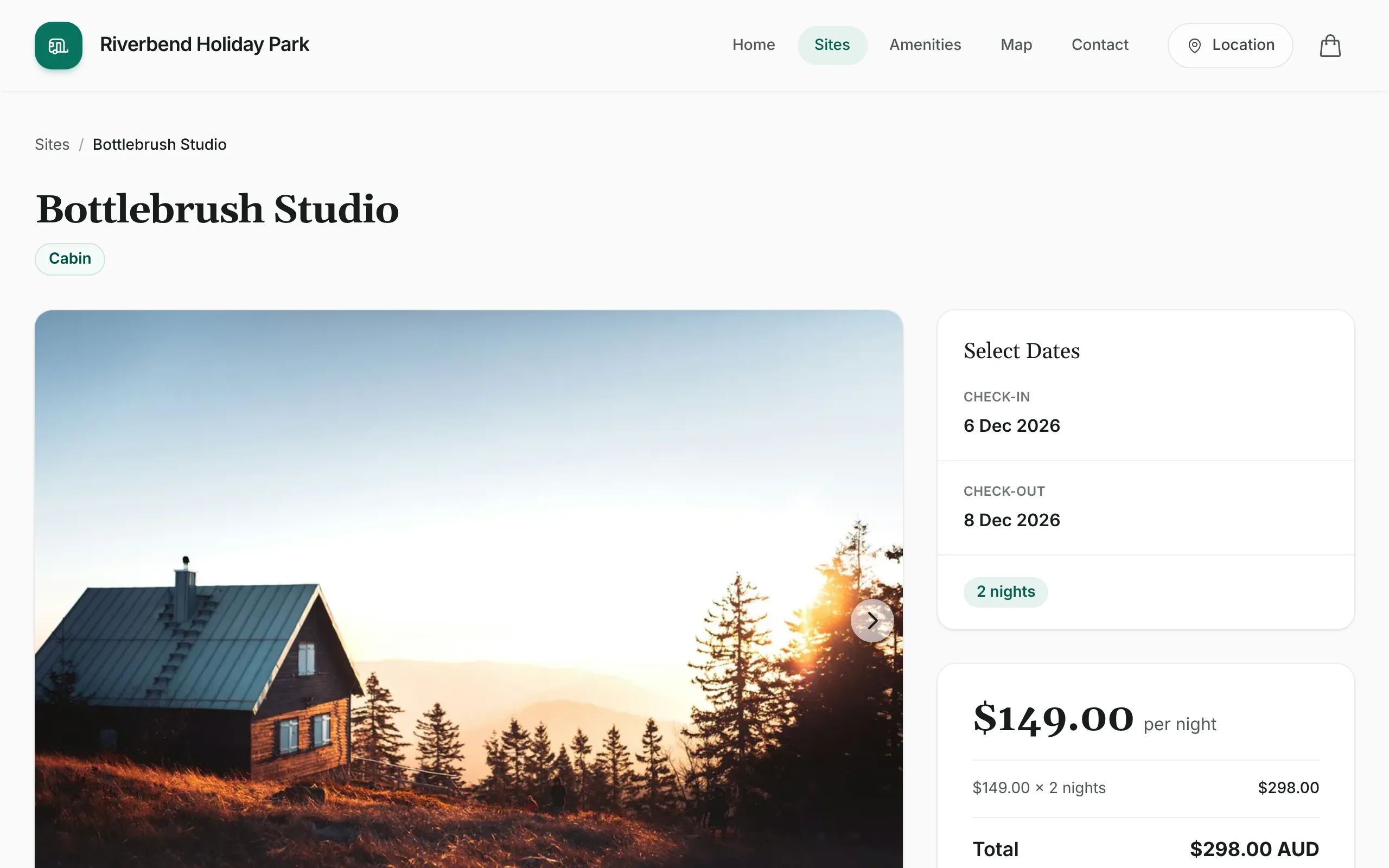
Photos and prices on every site
Each site and cabin gets its own page with a photo gallery and the price for the guest’s dates.
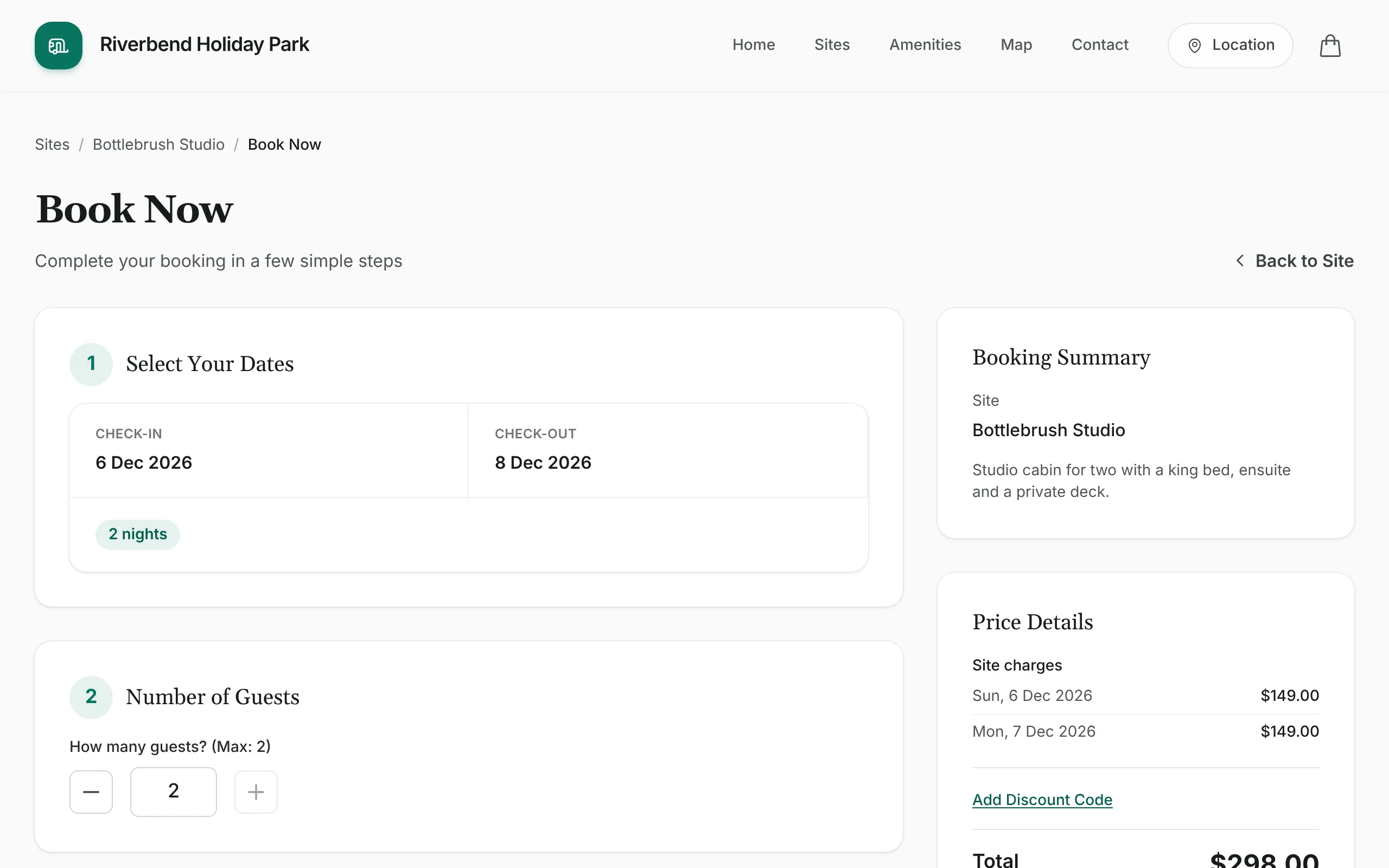
The price, night by night
Guests see the rate for each night, weekend prices included, and the GST inside the total before they enter a card.
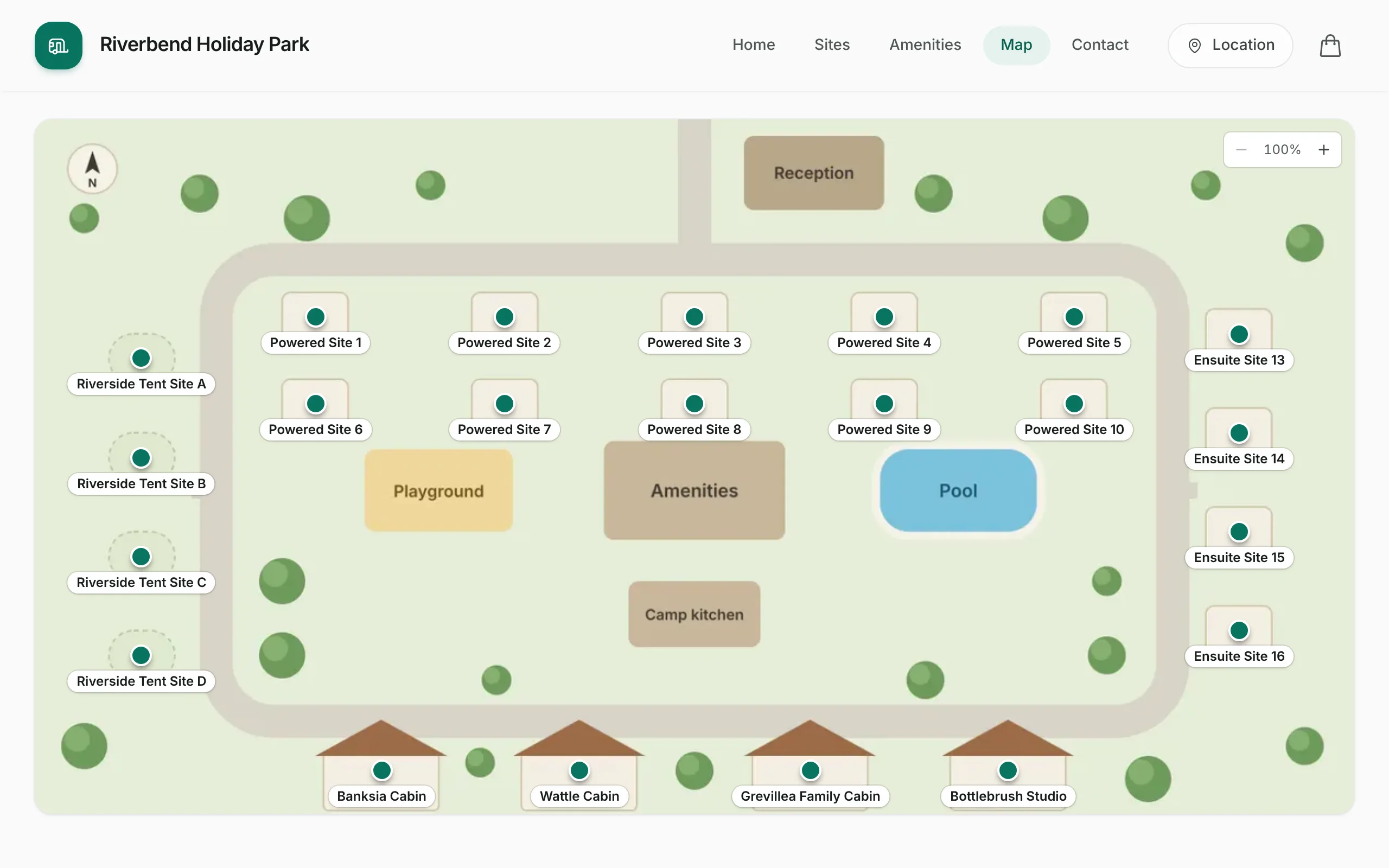
A map that helps them choose
Upload your park map and drag each site into place, so guests can pick a spot near the pool or away from the amenities block.
Built for phones first
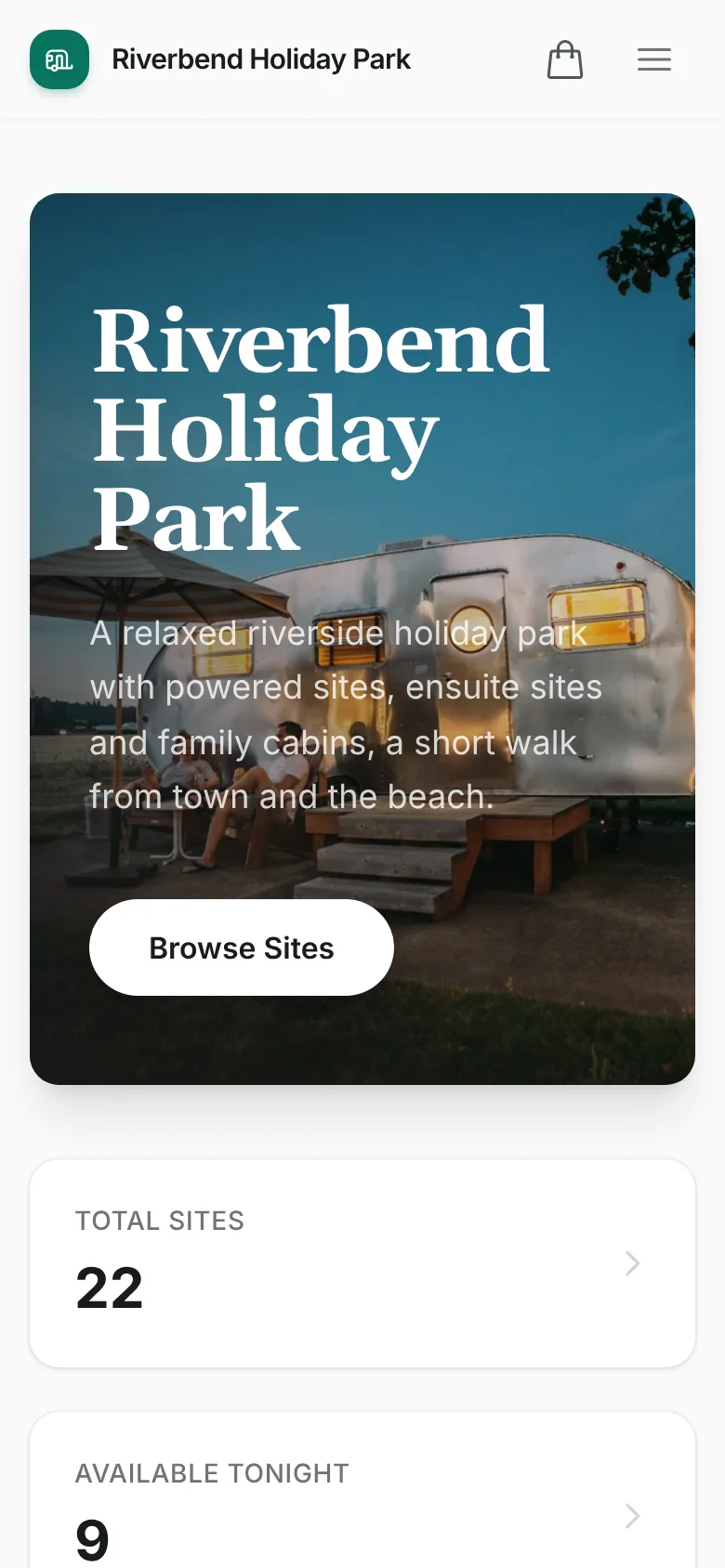
Plenty of guests book from a phone in the car. Before they reach the gate, they can enter their rego and accept your park rules in online check-in.
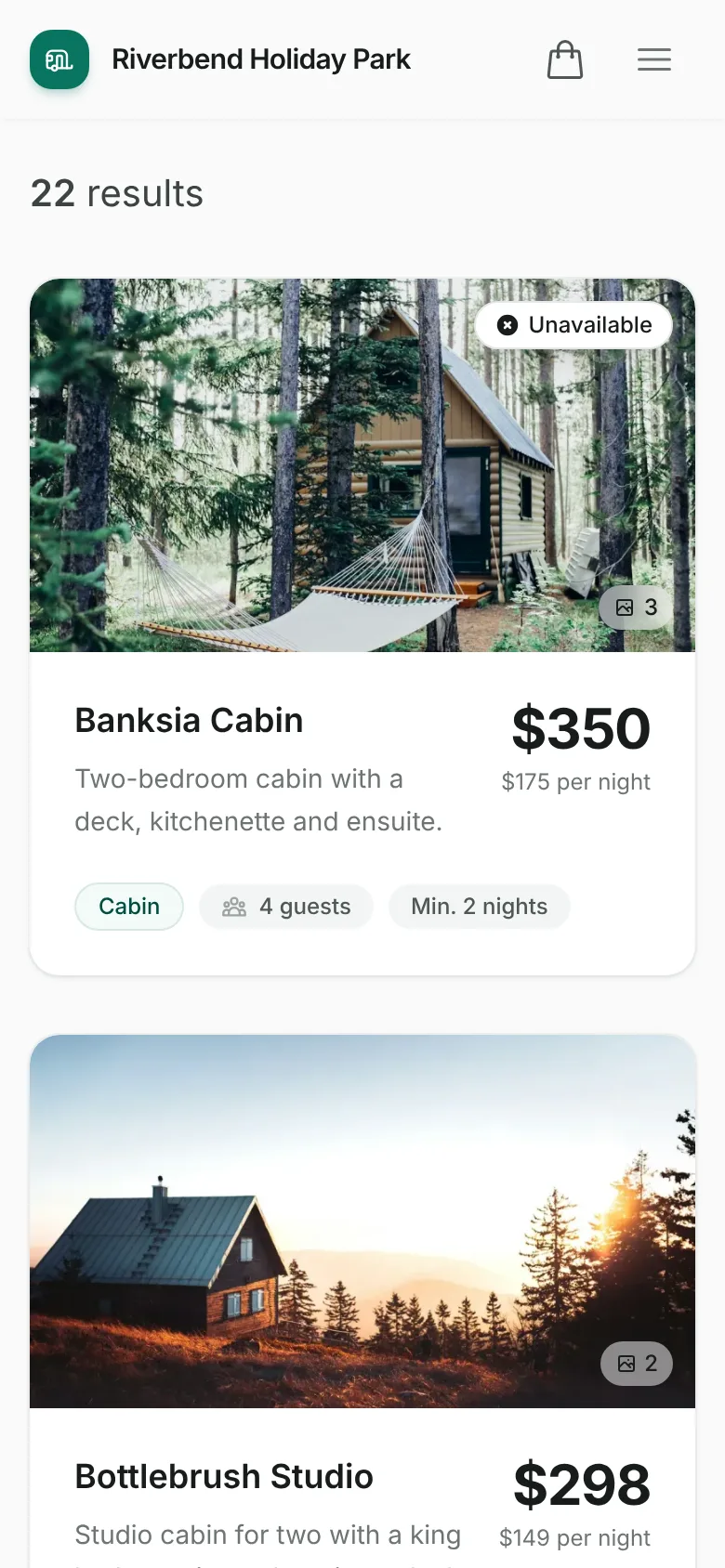
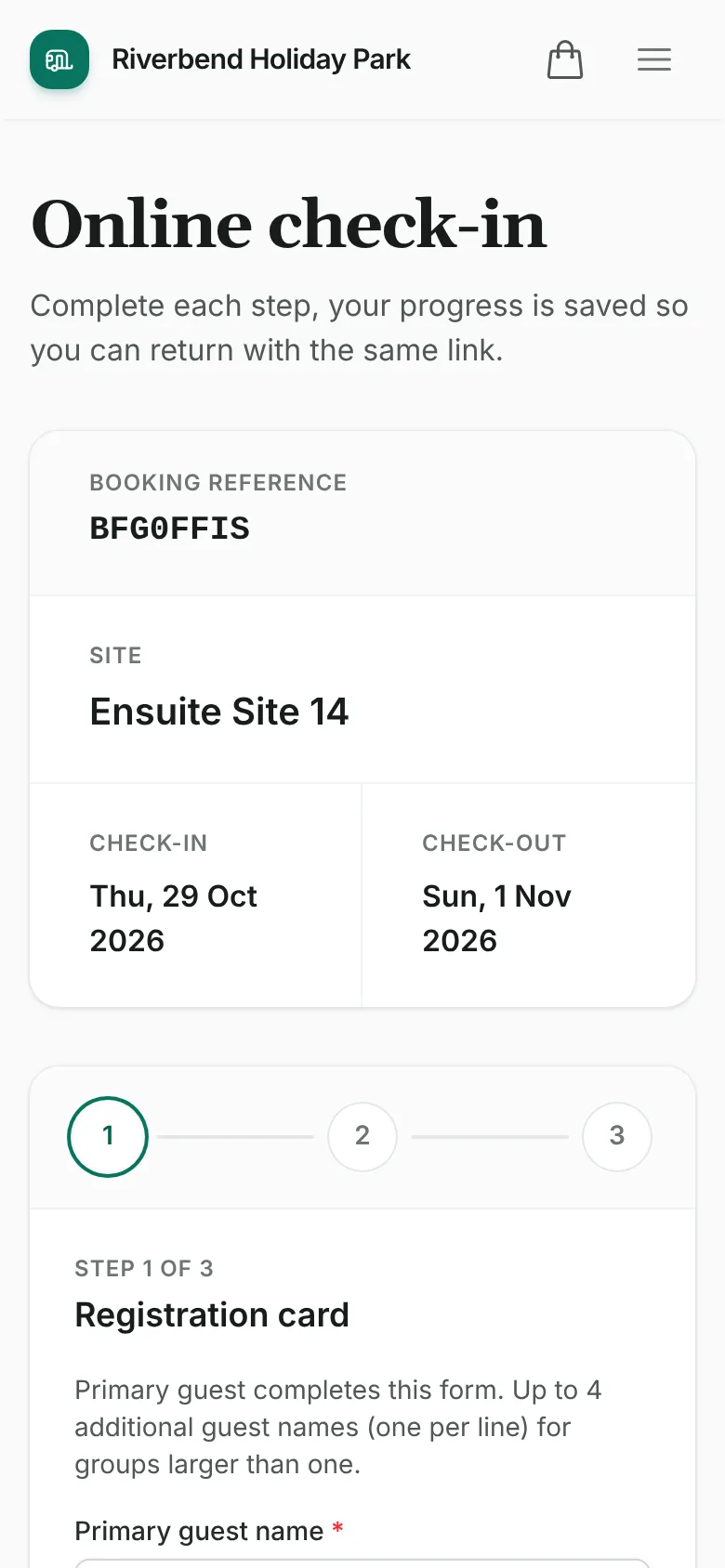
Emails that answer the usual questions
We write and send these for you with your logo and check-in times filled in, so guests know when to arrive without ringing the office.
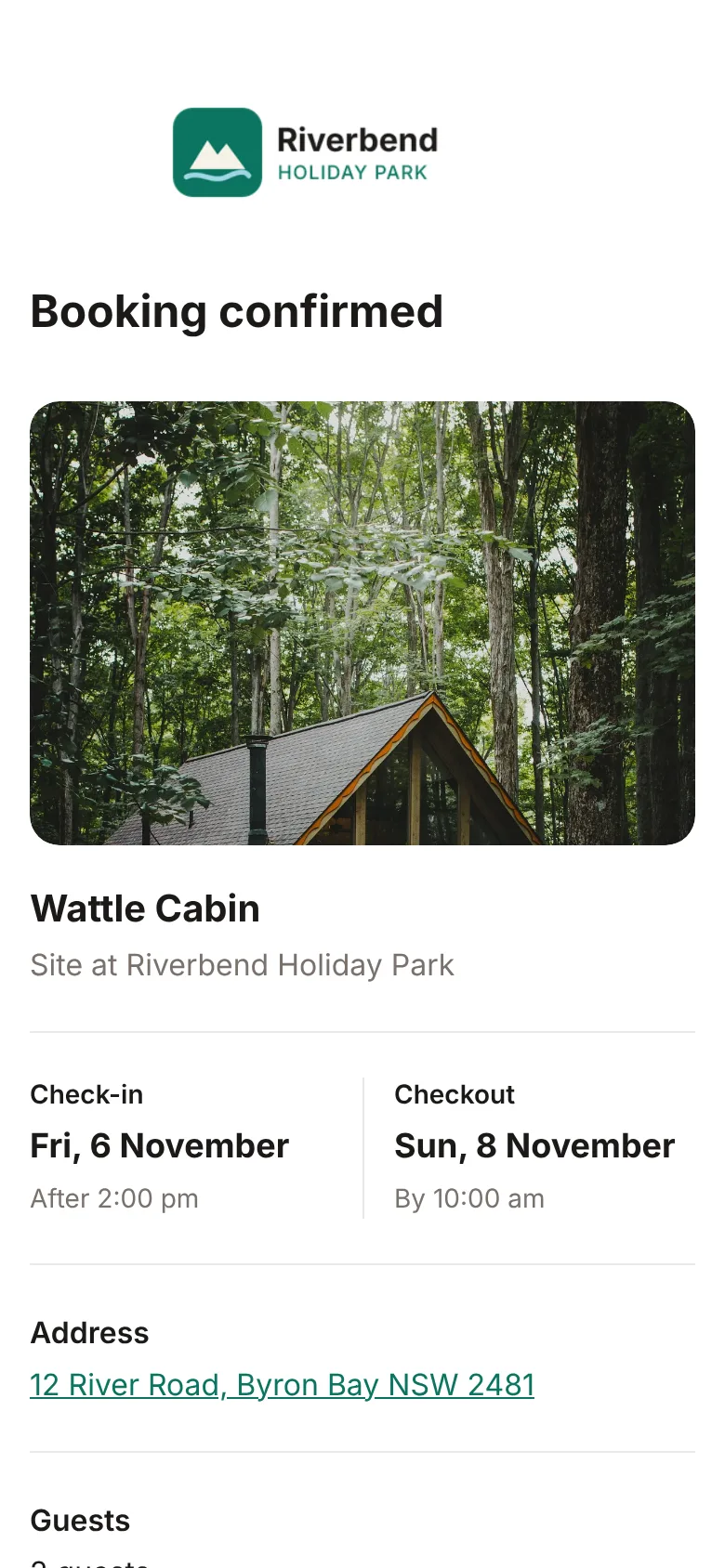
Goes out as soon as a guest books. If you’ve added your ABN or GST number, it’s also a tax invoice with the GST shown.
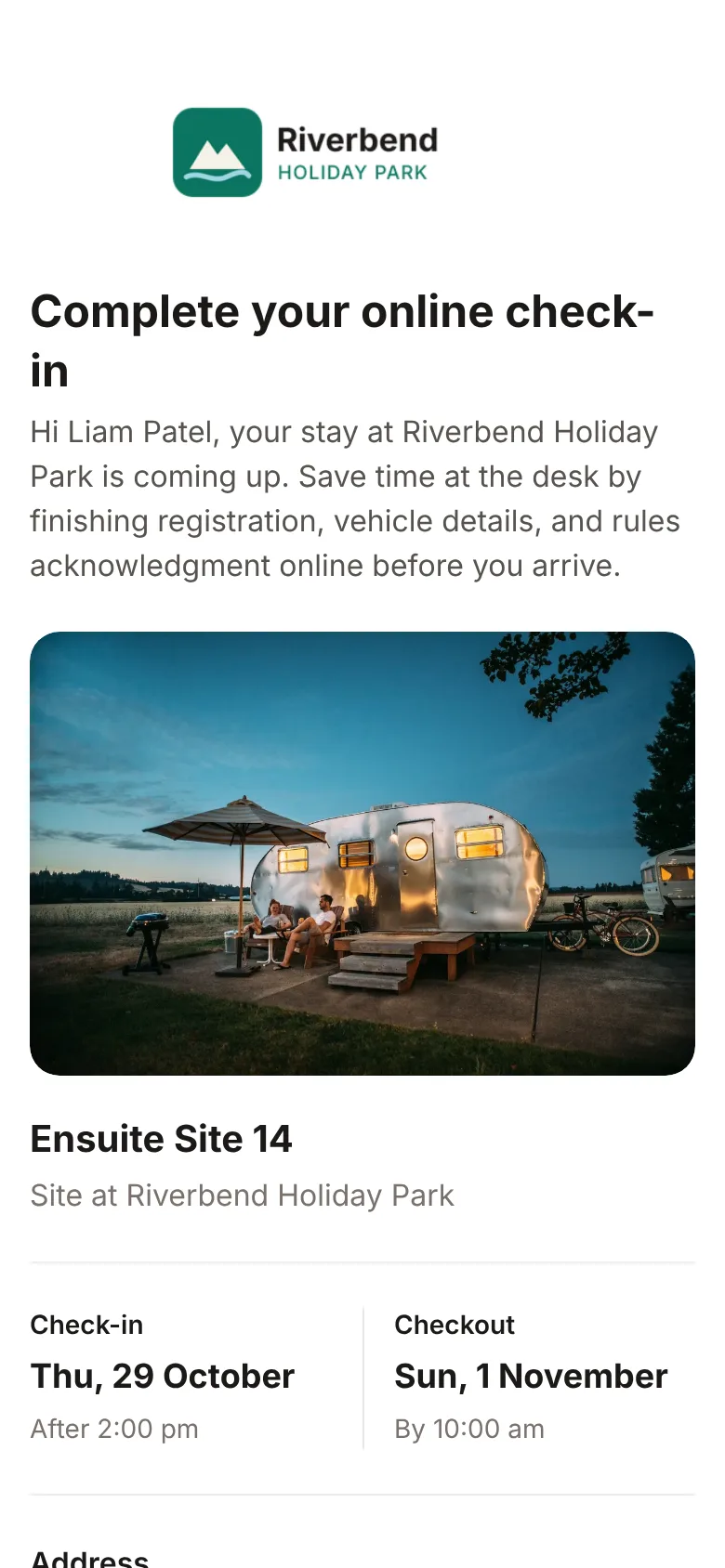
Goes out before arrival with a link that opens online check-in. Guests don’t need an account or password.
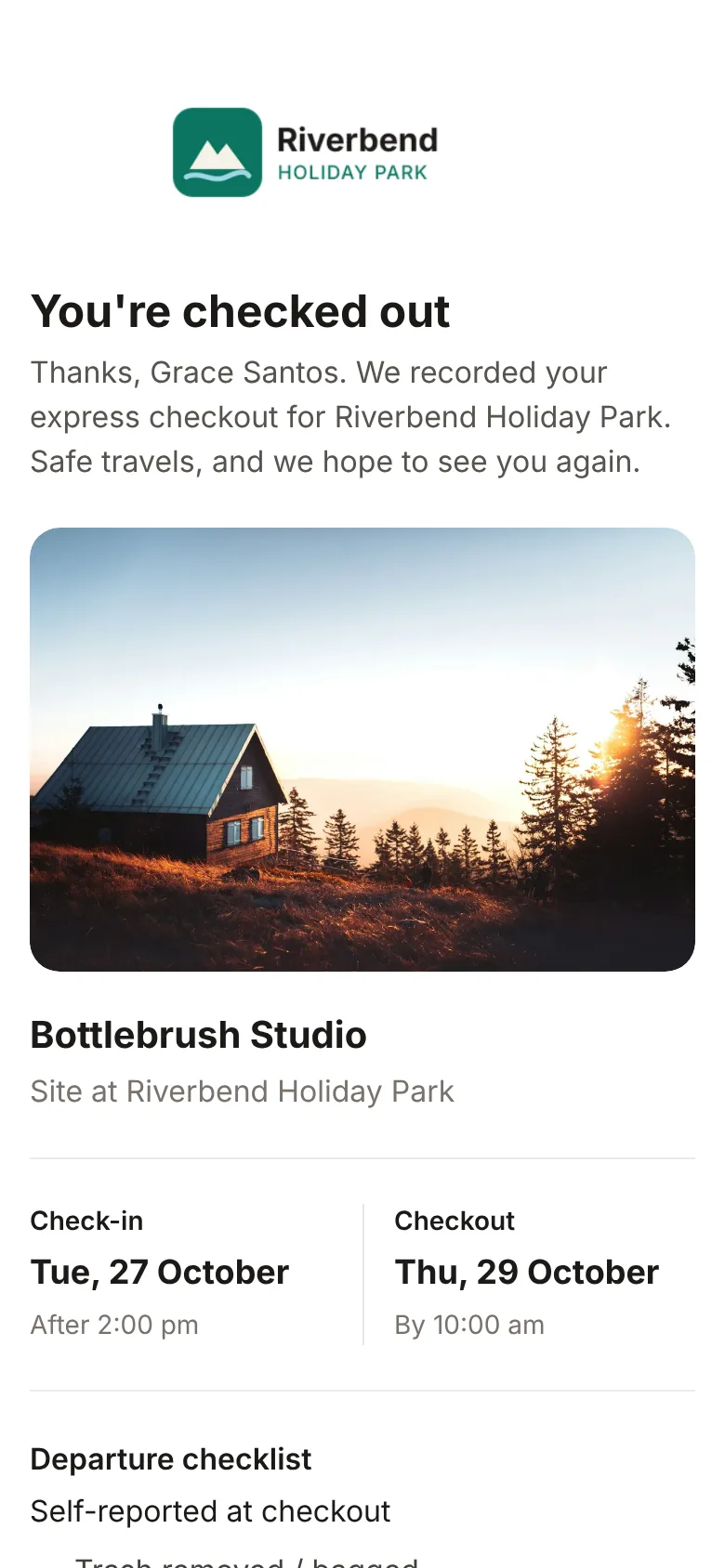
Goes out when a guest checks out on their phone, and lists the departure checklist they ticked.
See it with your own sites
Start the 30-day free trial and add your own sites and photos.